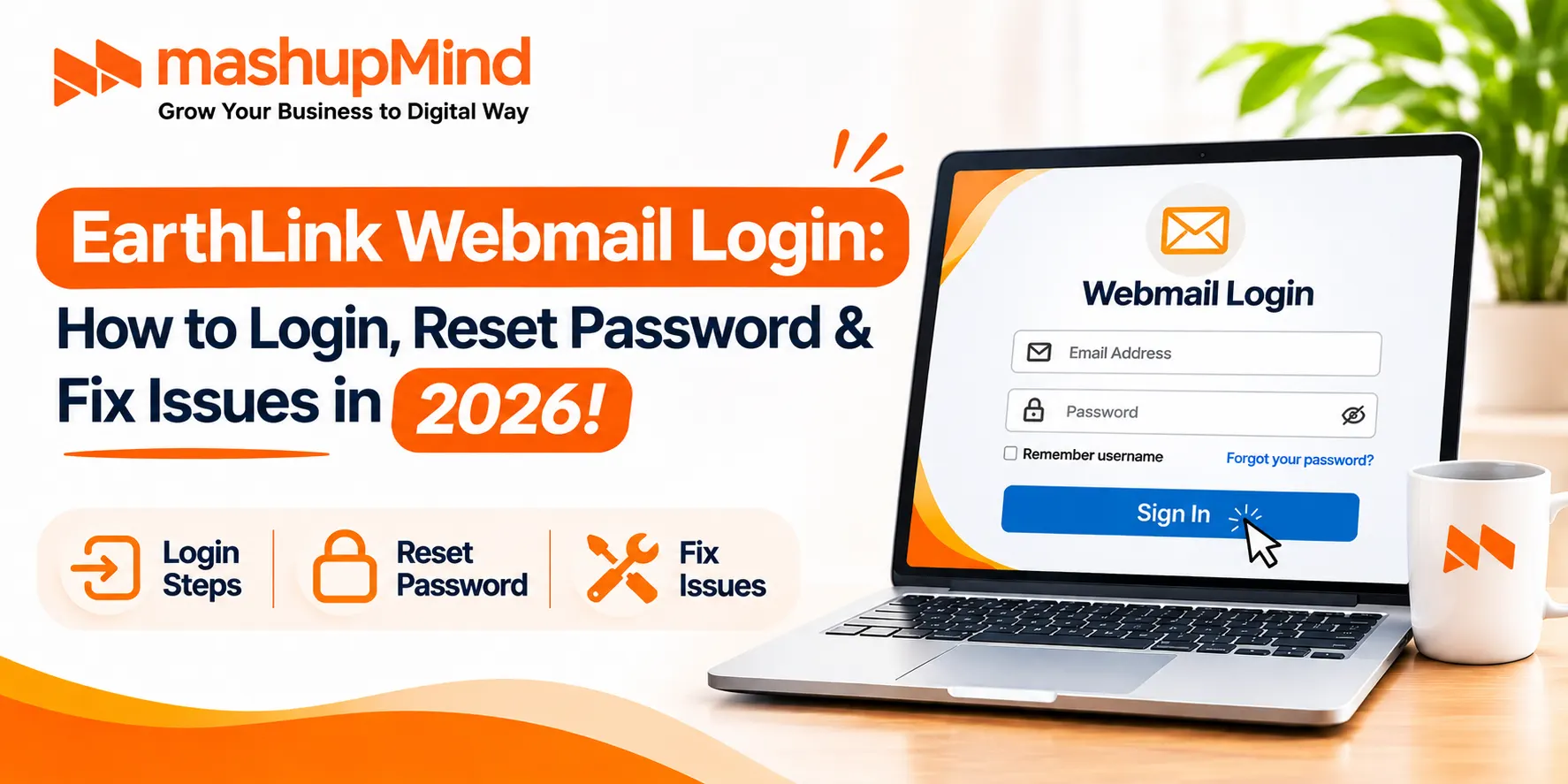
EarthLink webmail login lets you open your EarthLink email in a web browser. Go to https://webmail.earthlink.net, enter your full EarthLink email address and password, and click Login. This guide also covers my earthlink webmail login through MyEarthLink, password reset, and setup in Outlook, iPhone, and Android.
EarthLink is an Atlanta-based internet service provider. You need an EarthLink internet, TV, or mobile plan to get an EarthLink email account. You cannot create a free standalone EarthLink email account without a plan.
What Is EarthLink Webmail?
EarthLink Webmail is the web-based email service for EarthLink customers. You can read, send, and organise email from any browser, without an email app. Your email address usually ends in @earthlink.net. Older accounts may end in @mindspring.com or @ix.netcom.com.
There are 3 ways to access your EarthLink account. Do not mix them up:
| Service | URL | Use It For |
|---|---|---|
| Webmail | webmail.earthlink.net | Read and send email |
| MyEarthLink / Portal | portal.earthlink.net | Manage account, change password, billing |
| myEarthLink App | App Store / Google Play | Email on iPhone and Android |
EarthLink Webmail Login: Step-by-Step
- Open Chrome, Safari, Edge, or Firefox.
- Go to https://webmail.earthlink.net
- Enter your full email address, for example [email protected]. Do not enter only the username before the @.
- Enter your password. Passwords are case-sensitive.
- Click Login.
After you log in, you will see your inbox. You can read, compose, and organise messages, and manage folders from there.
Do not tick “Remember my login on this computer” on a public or shared computer, such as a library or internet cafe.
If the login page does not open, try https://webmail1.earthlink.net/login, clear your browser cache, or try another browser. Only use webmail.earthlink.net, portal.earthlink.net, or earthlink.net. Fake login pages steal passwords.
My EarthLink Webmail Login: Login Through MyEarthLink
My EarthLink is the account portal and app, not just Webmail.
- Go to https://portal.earthlink.net on desktop, or open the myEarthLink app on iPhone or Android.
- Sign in with your EarthLink User ID or primary email address and password.
- Open Webmail from the portal to read your email, or manage your account, billing, and passwords from the same login.
First-time users: your email address must exist before you can use Webmail. Create it in My Account first, with your primary account login, then log in to Webmail with that full email address.
EarthLink Webmail Login on iPhone and Android
Login in a Browser (iPhone / Android)
- Open Safari on iPhone or Chrome on Android.
- Go to https://webmail.earthlink.net
- Enter your full email address and password, and tap Login.
Use the myEarthLink App
Search for “myEarthLink Mail” in the Apple App Store or Google Play. Install it, sign in with your full EarthLink email address and password, and your inbox and Address Book will sync.
Add EarthLink Email to iPhone Mail App
- Go to Settings > Mail > Accounts > Add Account > Other > Add Mail Account.
- Enter your name, full EarthLink email address, password, and a description.
- Tap Next, choose IMAP, and enter the server settings from the table below.
- Tap Save.
EarthLink Email Server Settings: IMAP, POP, and SMTP
Use these official EarthLink settings for Outlook, Apple Mail, Thunderbird, iPhone, and Android. Use IMAP if you read email on more than one device. Do not mix POP on one device and IMAP on another for the same mailbox – messages can go missing.
| Setting | Server | Port | Security |
|---|---|---|---|
| Incoming IMAP | imap.earthlink.net | 993 | SSL/TLS |
| Incoming POP | pop.earthlink.net | 995 | SSL/TLS |
| Outgoing SMTP | smtpauth.earthlink.net | 587 | STARTTLS |
Login format: your full email address, [email protected]. Authentication: required for both incoming and outgoing servers, with your full email address and password. Important: the outgoing server is smtpauth.earthlink.net, not smtp.earthlink.net. That is the most common setup error.
POP is per-domain: pop.earthlink.net for @earthlink.net, pop.mindspring.com for @mindspring.com, and so on. IMAP is the same for all EarthLink domains.
How to Set Up EarthLink Email in Outlook
- Open Outlook, go to File > Add Account.
- Enter your full EarthLink email address and click Connect.
- Choose IMAP.
- Enter Incoming server imap.earthlink.net, Port 993, Encryption SSL/TLS.
- Enter Outgoing server smtpauth.earthlink.net, Port 587, Encryption STARTTLS, and tick Require authentication.
- Enter your password and click Connect.
How to Reset Your EarthLink Password
If you forgot your password, do not guess it again and again. Your account can lock.
Forgot Password – Reset Online (Best If You Forgot It)
- Go to https://portal.earthlink.net
- Click Forgot Password? under the Email Address or User ID box.
- Follow the prompts to verify your account and create a new password.
- Or go directly to https://login.earthlink.net/forgot-password
You can also call EarthLink at 888-327-8454 and use the automated system to send a password reset. EarthLink will send an email to the address on file.
Change Password – If You Know Your Current Password
- Go to https://portal.earthlink.net and sign in.
- Click Account Security in the navigation menu.
- Scroll to Change Password, enter a new password, and save.
Or change it in Webmail: log in to Webmail with your primary EarthLink email address, go to Preferences > Account Security, and update your password there. To change a secondary email address password, select that address in the dropdown first, then save.
After you change the password, update it in every place you use it – Webmail, Outlook, iPhone Mail, Android, and the myEarthLink app – or those apps will keep failing to log in.
EarthLink Password Rules
Your new password must follow these rules:
- 8 to 32 characters long.
- Use at least 3 of these 4: uppercase letters, lowercase letters, numbers, special characters.
- Do not use \ or ” in the password.
- Do not use common dictionary words like “password”, “secret”, or “EarthLink”.
- Use a unique password. Do not reuse a password from another site.
- Do not use personal information like your name or birthdate.
How to Manage Your EarthLink Webmail Account
1. Use Folders
Create folders for work, bills, family, and newsletters. Move emails into folders as you read them, and keep the folders updated. That makes it easy to find an old email in seconds.
2. Turn On the Spam Filter
EarthLink Webmail has a built-in spam filter. Turn it on and check your Spam folder once a week, so a real email does not get lost there.
3. Turn On Email Alerts
Turn on notifications in Webmail or in the myEarthLink app, so you do not miss important emails. Set the timing and frequency to suit you.
4. Log In At Least Once Every 90 Days
Important: If you do not sign into EarthLink WebMail, MyEarthLink, or the EarthLink Portal for 90 days, EarthLink will stop delivering new email messages until you access your mailbox again. Log in at least once every 90 days to keep your mailbox active.
Read: WPA2 Password: What It Is and Why It Matters?
EarthLink Webmail Login Not Working? Fix It Here
| Problem | Most Likely Cause | Fix |
|---|---|---|
| Wrong email or password | Typo, Caps Lock, or old password | Retype the full email address, turn off Caps Lock, reset the password at portal.earthlink.net |
| Page will not open | Wrong URL or browser cache | Use https://webmail.earthlink.net, clear cache, try another browser |
| Login works on web, fails in Outlook | Old password in Outlook, or wrong server | Update the password in Outlook, check imap.earthlink.net / 993 and smtpauth.earthlink.net / 587 |
| Cannot send email | SMTP authentication off, or wrong server | Turn on SMTP authentication, use smtpauth.earthlink.net, Port 587, STARTTLS |
| No new emails | 90-day inactivity, or mailbox full | Log in to Webmail, delete old mail, empty Trash |
| Account locked | Too many wrong attempts | Wait, then reset the password with Forgot Password, and log in once |
Frequently Asked Questions About EarthLink Webmail Login
1. What is the official EarthLink webmail login link?
The official link is https://webmail.earthlink.net. Enter your full EarthLink email address and password there. You can also manage your account at portal.earthlink.net.
2. What is my EarthLink webmail login and password?
Your login is your full EarthLink email address, for example [email protected], and the password you set for that email account. Keep it safe and do not share it.
3. How do I reset my EarthLink password if I forgot it?
Go to portal.earthlink.net, click Forgot Password?, and follow the prompts to verify your account and create a new password. Or call 888-327-8454 for an automated reset email.
4. What are the EarthLink email settings for Outlook and iPhone?
Incoming IMAP: imap.earthlink.net, Port 993, SSL/TLS. Outgoing SMTP: smtpauth.earthlink.net, Port 587, STARTTLS. Login with your full email address and turn on authentication.
5. Why is my EarthLink webmail login not working?
The most common causes are a wrong password, Caps Lock on, an old password saved in Outlook or Mail, or a wrong server setting. Retype the password, reset it at the portal, and check the IMAP / SMTP settings above.
6. Can I get EarthLink Webmail for free?
No. EarthLink Webmail is free for EarthLink internet, TV, or mobile customers, but you need a paid EarthLink plan first. If you cancel your service, you may lose access to your EarthLink email.
The bottom line
EarthLink webmail login is simple. Use webmail.earthlink.net. Enter your full email address and password. Click Login.
If you forgot your password, use Forgot Password at portal.earthlink.net. Create a strong password, 8-32 characters, with upper and lower case, numbers, and a symbol.
For Outlook and iPhone, use imap.earthlink.net on Port 993 and smtpauth.earthlink.net on Port 587. Log in at least once every 90 days, so EarthLink does not stop delivering your mail.

I’m Kishan Rana, an SEO professional and digital marketing specialist with over 8 years of hands-on experience in search engine optimization, organic growth strategies, and online visibility enhancement. I’m passionate about analyzing search algorithms, exploring ranking strategies, and helping businesses build sustainable traffic through data-driven SEO practices. Through Mashupmind, I share practical insights, industry trends, and actionable techniques designed to help brands grow smarter in the digital landscape.